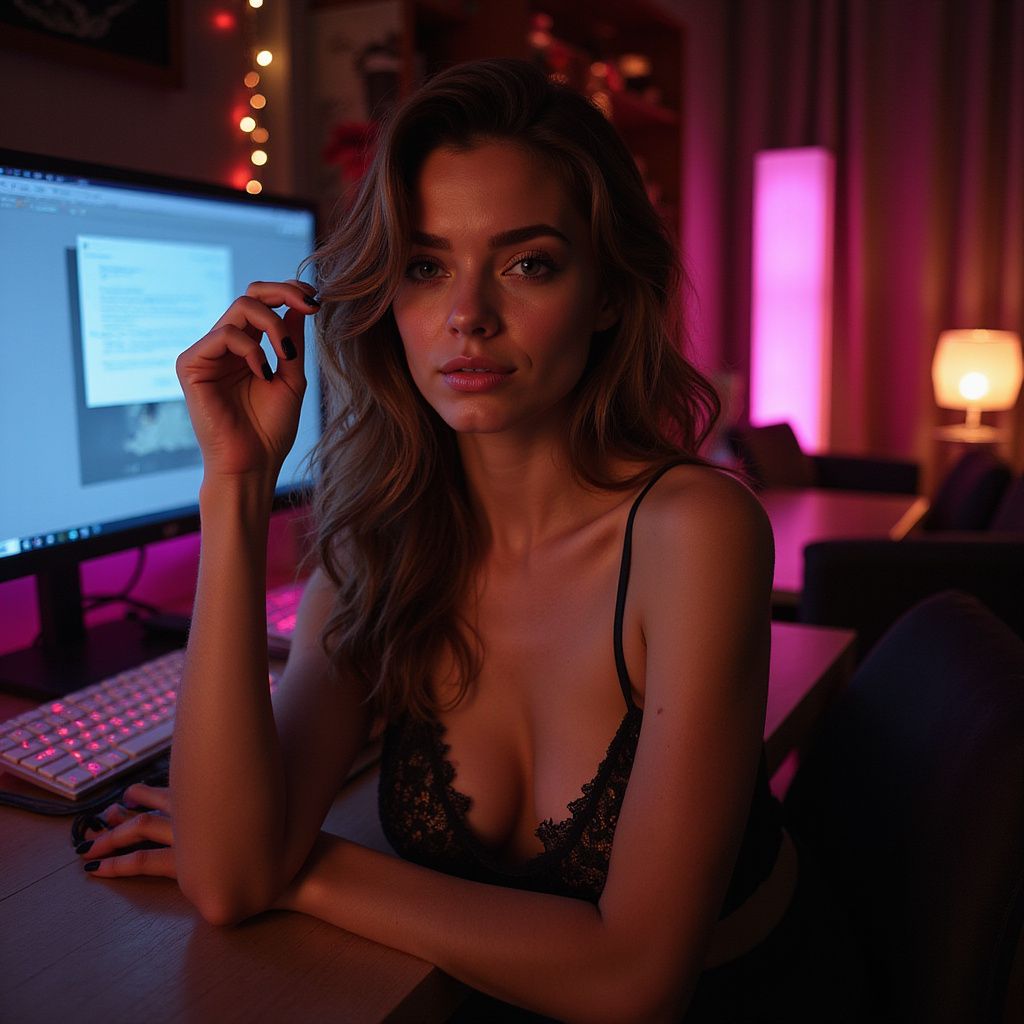
Why Computer Specs Matter for Cam Models
Hey there, fellow cam model! If you've ever dealt with laggy streams, dropped frames, or that frustrating "buffering" wheel during a hot show, you know how killer it can be for your vibe—and your tips. A solid computer setup isn't just a luxury; it's the backbone of smooth, professional streaming. We're talking crystal-clear video, reliable audio, and multitasking without a hitch, even when you're running OBS, chat apps, tip menus, and maybe a toy controller all at once.
In this guide, we'll break down the exact specs you need for seamless streaming on platforms like Chaturbate, MyFreeCams, or Stripchat. We'll focus on practical recommendations for budgets from beginner ($500–$800) to pro ($1,500+), with real-world tips to optimize what you have. Aim for 1080p/60fps streaming as your gold standard—it's what viewers expect in 2024. Let's dive in!
CPU: The Brain of Your Streaming Rig
Your CPU handles encoding your video feed, which is the most demanding task. A weak processor means choppy streams and high CPU usage (over 80% is a red flag).
Recommended Specs
- Minimum: Intel Core i5-10400 or AMD Ryzen 5 3600 (6 cores/12 threads).
- Recommended: Intel Core i7-12700 or AMD Ryzen 7 5700X (8+ cores/16 threads).
- Pro Level: Intel Core i9-13900K or AMD Ryzen 9 7950X (16+ cores).
Why cores matter: Streaming uses x264 software encoding (CPU-based) unless you have a beast GPU. More cores = better multitasking. Example: During a busy show, your i7 can encode 1080p/60fps at 6000kbps while running Lovense app and Discord without breaking a sweat.
Do's and Don'ts
- Do: Use Intel's Quick Sync or AMD's VCN for hardware encoding if your CPU supports it—cuts load by 50%.
- Don't: Skimp on a quad-core CPU; it'll max out at 720p.
- Tip: Check usage in Task Manager (Windows) or Activity Monitor (Mac). Keep it under 70% during tests.
GPU: Power Up for High-Quality Encoding
A good GPU offloads encoding via NVENC (Nvidia) or Quick Sync (Intel), freeing your CPU for games, effects, or bots.
Recommended Specs
- Minimum: Nvidia GTX 1650 or Intel UHD Graphics 630 (for Quick Sync).
- Recommended: Nvidia RTX 3060 (12GB VRAM ideal for overlays).
- Pro Level: Nvidia RTX 4070 or higher.
Real-world example: With an RTX 3060, you can push 1080p/60fps at 8000kbps with zero frame drops, even adding green screen effects or custom alerts. AMD GPUs work too, but Nvidia's NVENC is the gold standard for OBS.
Do's and Don'ts
- Do: Enable hardware encoding in OBS Settings > Output > Advanced. Test with bitrate ladder (4000–8000kbps).
- Don't: Rely on integrated graphics for 4K; upgrade to discrete ASAP.
- Strategy: Use MSI Afterburner to monitor GPU temp—keep under 80°C to avoid throttling.
RAM: Multitask Without the Crash
Streaming + browser tabs + Spotify + chat = RAM hog. Insufficient memory causes stutters or crashes mid-show.
Recommended Specs
- Minimum: 16GB DDR4 (2x8GB dual-channel).
- Recommended: 32GB DDR4/DDR5 (2x16GB).
- Pro Level: 64GB for heavy editing or 4K multi-cam.
Pro tip: Dual-channel RAM doubles bandwidth. Example: 32GB lets you run OBS (4GB), Chrome with 20 tabs (8GB), and Streamlabs (4GB) smoothly. Check usage—aim for under 80% peak.
Do's and Don'ts
- Do: Close unnecessary apps pre-stream. Use 3200MHz+ speed for best perf.
- Don't: Buy mismatched sticks; it cripples performance.
- Quick fix: Add RAM cheaply—$50 for 16GB DDR4 kit.
Storage: Speed Over Space
Fast storage reduces OBS recording lag and app load times. HDDs are too slow for live work.
Recommended Specs
- Minimum: 500GB NVMe SSD.
- Recommended: 1TB NVMe SSD (e.g., Samsung 970 EVO).
- Pro Level: 2TB SSD + 4TB HDD for archives.
NVMe SSDs hit 3500MB/s reads—your OS, OBS scenes, and recordings fly. Example: Store custom overlays and VODs here; no more "file not found" panic.
Internet and Peripherals: The Unsung Heroes
Even a beast PC flops with bad internet. Aim for 10Mbps upload minimum.
Internet Specs
- Minimum: 10Mbps up/50Mbps down, <50ms ping.
- Recommended: 50Mbps up (fiber optic ideal).
Test via speedtest.net while streaming. Use Ethernet over WiFi—cuts packet loss by 90%.
Peripherals Checklist
- USB 3.0+ ports for webcam/lights (avoid hubs).
- High-quality webcam: Logitech C920 (min) or Elgato Facecam (rec).
- Motherboard with good VRM for overclocking if needed.
Budget Build Examples
Beginner Build (~$600)
- AMD Ryzen 5 5600G ($150) – Integrated GPU bonus.
- 16GB DDR4 ($40).
- 500GB NVMe SSD ($40).
- B450 Motherboard ($80), 500W PSU ($50), Case ($50).
Streams 720p/30fps flawlessly. Upgrade path: Add GPU later.
Pro Build (~$1,500)
- Intel i7-13700K ($400).
- RTX 4070 ($550).
- 32GB DDR5 ($150).
- 1TB SSD ($80), B760 MB ($150), 750W PSU ($100).
Handles 1080p/60fps + dual monitors + editing.
Optimization Tips and Troubleshooting
Software Setup:
- Download OBS Studio (free/powerful) or Streamlabs OBS.
- Scene collection: Base (face/body), Full (toys/overlays). Use hotkeys.
- Bitrate: 4500–6000kbps for 1080p/30fps; 6000–8000 for 60fps.
Common Fixes:
- Lag? Lower preset to "faster" in OBS encoder.
- Dropped frames? Cap FPS at 60, disable game mode on TV.
- Overheating? Elevate laptop or add PC fans; clean dust quarterly.
Do's and Don'ts Summary:
- Do: Benchmark with OBS Log Analyzer (obsproject.com).
- Don't: Stream on a work laptop—thermal limits kill it.
- Pro Strategy: Dual PC setup (one for streaming, one for camming) if you're top-tier ($2k+ investment).
With these specs, you'll stream like a pro, keeping viewers hooked and tokens flowing. Start with what fits your budget, test rigorously, and scale up as you earn. Got questions? Drop 'em in the comments. Happy streaming! 💻✨