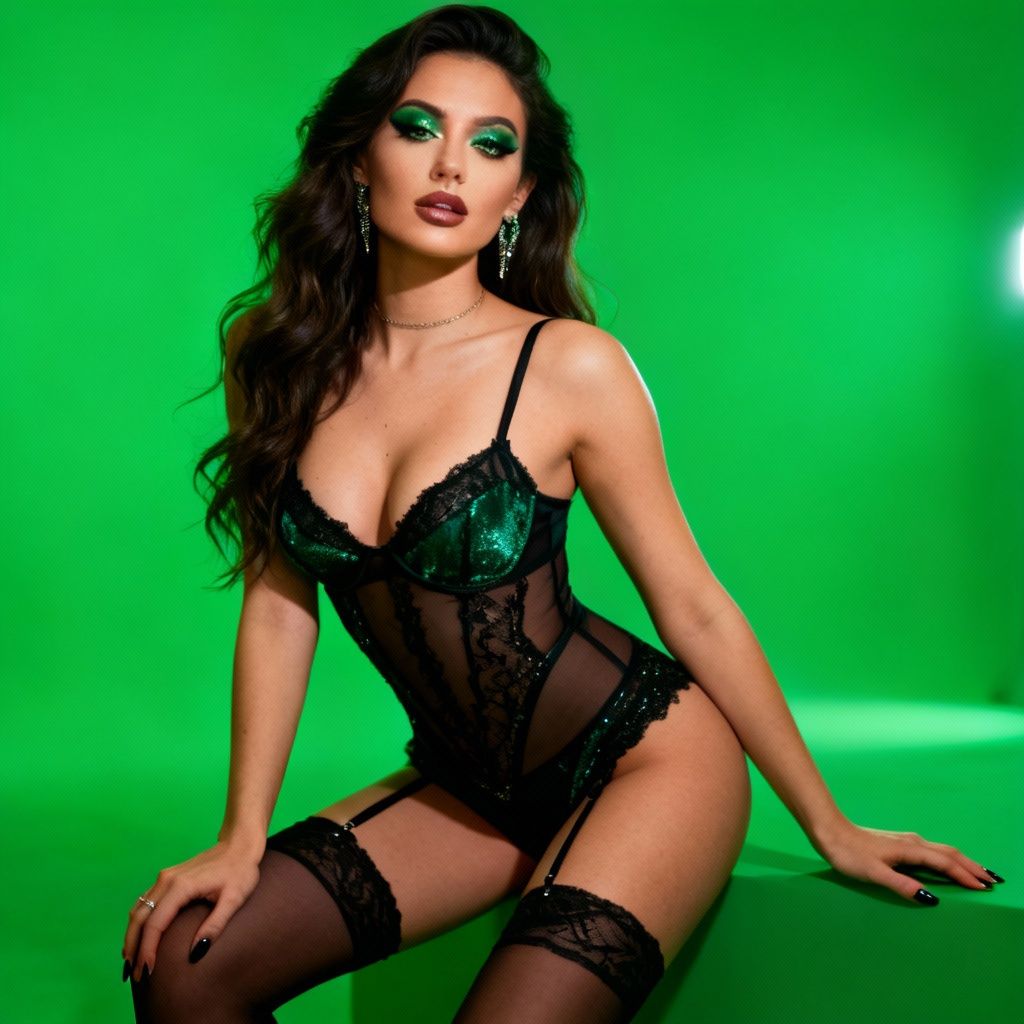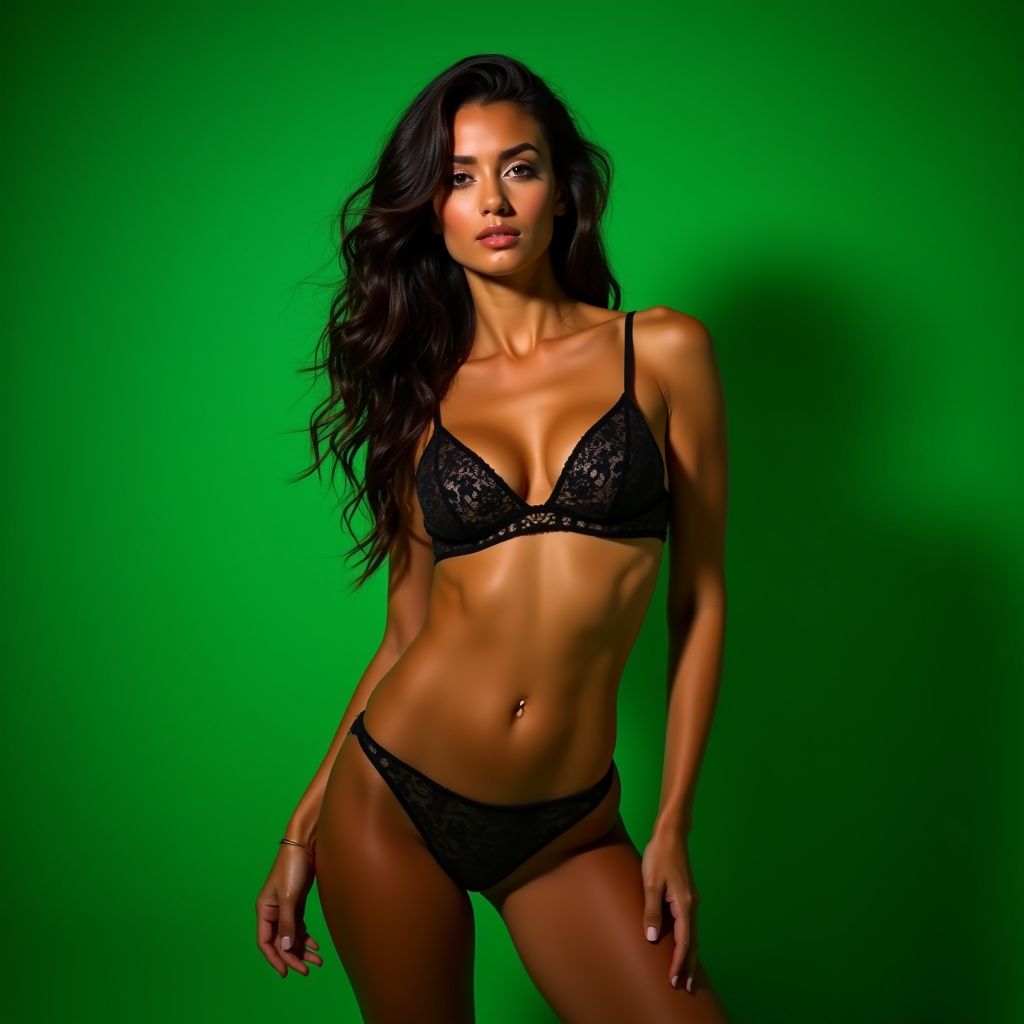
Introduction to Green Screens in Camming
Hey there, fellow cam models! If you're looking to level up your streaming setup without breaking the bank or cluttering your space, a green screen is your new best friend. Green screens allow you to virtually swap out your background for anything from a luxurious bedroom to a tropical beach, all while keeping the focus on you. This guide dives deep into using green screens effectively, with practical tips tailored for cam models. Whether you're a beginner or a pro wanting to refine your setup, you'll find actionable advice here to make your shows more immersive and professional.
Why bother? Custom backgrounds hide messy rooms, add thematic flair (think holidays or fantasies), and help you stand out in crowded platforms. Done right, it looks seamless; done wrong, it screams "amateur." Let's get you that pro look!
Choosing the Right Green Screen
Selecting quality gear is step one. Not all green screens are created equal—cheap ones wrinkle, reflect light poorly, or fade quickly.
Types of Green Screens
- Collapsible Pop-up Screens: Portable and affordable (around $20-50). Ideal for small spaces. Example: Elgato Collapsible Green Screen—wrinkle-resistant fabric, sturdy frame.
- Chroma Key Fabric: Cheap muslin cloth ($10-30). Hang it taut with PVC pipes or a stand. Great for custom sizes but needs ironing.
- Hard Screens or Paint: Permanent setups like painted walls. Pro-level but less flexible—use chroma key paint like Rosco Chroma Green.
Do's and Don'ts for Selection
- Do: Pick non-reflective, matte "chroma green" (true color #00FF00 equivalent). Size it 1.5-2x your body for full coverage.
- Don't: Buy shiny or lime green—causes keying artifacts. Avoid tiny screens; viewers notice edges.
Budget tip: Start with a $30 pop-up from Amazon. Test it before shows!
Setting Up Your Green Screen Space
Your room layout matters. Aim for a dedicated 6x6 ft area minimum.
Positioning and Distance
- Mount the screen flat against a wall or freestanding, 4-6 feet behind you. Closer risks shadows; farther needs more light.
- Position your chair/webcam 3-4 feet from the screen. This "sweet spot" minimizes spill (green glow on you).
- Ensure even coverage—no wrinkles! Use clips, tape, or a steamer.
Lighting Your Green Screen
Lighting is 70% of success. Uneven light = patchy keys.
- Two-Key Light Setup: Place two softbox lights (e.g., Neewer 660 LED kits, $50/pair) at 45-degree angles to the screen, 2-3 feet away. Even, shadow-free illumination.
- Key Your Subject Separately: Use ring lights or softboxes on you (front/sides). Warmer tones (3200K) for skin; cooler (5600K) for the screen.
- Fill Lights: Bounce light to kill shadows. Avoid direct screen light on you—use barn doors or flags (DIY with black foam board).
Example: For a sexy lounge vibe, light the screen cool blue-white; light yourself with warm key + pink rim light for glow.
Do's and Don'ts for Setup
| Do | Don't |
|---|---|
| Steam wrinkles pre-show. Test keying daily. | Place screen near windows—daylight ruins evenness. |
| Use stands for tautness. | Over-light; hotspots cause fizzles. |
| Blackout room edges to contain spill. | Forget cables—trip hazards kill streams. |
Hardware and Software Essentials
Camera and PC Specs
- Camera: Logitech C922 or Elgato Facecam (1080p/60fps). Good low-light handling prevents noise on green.
- PC: i5/Ryzen 5+, 16GB RAM, dedicated GPU (GTX 1660+). Handles real-time keying.
Best Software for Keying
- OBS Studio (Free): Gold standard. Add "Chroma Key" filter to video source. Tweak similarity (0.4-0.6), smoothness (50-80), key color spill reduction.
- XSplit or Streamlabs OBS: User-friendly alternatives with built-in chroma tools.
- Pro Options: vMix ($60+) for multi-layer compositing.
Pro Tip: OBS scene collection—save "Beach Fantasy" with palm overlay vs. "Lux Bedroom" with virtual candles.
Keying Techniques: Step-by-Step
Master these for flawless results.
Basic OBS Chroma Key Workflow
- Add Webcam as source > Filters > "+" > Chroma Key.
- Sample color: Eyedropper on pure green.
- Tune sliders:
- Similarity: 0.35-0.5 (too high = holes).
- Smoothness: 60-90 (blurs edges).
- Spill Reduction: 10-30% (neutralizes green tint on skin).
- Add background: Image/video layer below webcam.
- Edge Blend/Feather for soft outlines.
Advanced Tricks for Cam Models
- Multi-Layer Backgrounds: Parallax effect—far layer static, near layer subtle move (OBS Move plugin, free).
- Props Integration: Hold physical toys; virtual background fades behind. Example: "Beach" BG with real sunglasses.
- Themed Overlays: Animate hearts/hearts for tips, or fantasy elements like fog/mist (free assets from Pixabay).
- Spill Fix: Desaturate green hue in color correction filter. Add slight orange tint to skin.
Real-World Example: For a "Naughty Nurse" show, key in a sterile hospital room BG. Add pulsing heart monitors synced to music via OBS audio-reactive plugins.
Common Mistakes and Fixes
Avoid these pitfalls:
- Green Spill: Fix: More separation + spill reduction. Wear non-green clothes (no black/white—they key poorly).
- Hair/Edges Fizzling: Compress hair slightly, use matte spray. Backlight hair for separation.
- Shadows/Wrinkles: Extra screen lights + steaming.
- Lag: Lower res to 720p or upgrade hardware. Close background apps.
Quick Troubleshooting Checklist
- Screen lit evenly? No hotspots/shadows.
- No green on skin/clothes?
- Edges clean? Adjust smoothness.
- Test on mobile viewers—compression kills keys.
Creative Strategies for Cam Shows
Green screens shine in engagement:
- Tip-Menu Backgrounds: Change BG per goal—cozy room to wild party.
- Roleplay Immersion: Schoolgirl? Virtual classroom. Dominatrix? Dungeon with chains.
- Seasonal Themes: Halloween haunted house, Christmas wonderland—free Pexels videos loop perfectly.
- Viewer Interactivity: Poll for next BG. "Beach or Bedroom?"
Strategy: Start shows with a "reveal"—key in neutral, tip to unlock fantasy BG. Boosts interaction!
Maintenance and Upgrades
Weekly: Clean screen with microfiber (no harsh chemicals). Store collapsed to avoid creases.
Upgrades Path:
- Level 1: Basic pop-up + OBS ($50).
- Level 2: Softboxes + better cam ($150).
- Level 3: Multi-monitor for scenes + greenscreen paint ($300+).
ROI: Pros report 20-30% tip increases from polished looks.
Final Tips for Success
Practice 30-min tests pre-stream. Record clips, review on different devices. Join cam forums (e.g., Reddit r/CamGirlProblems) for feedback. Green screens aren't magic—they reward prep. Nail this, and your shows pop!
Word count: 1052. Happy streaming!